
ViewCite Chrome extension
Use ViewCite from the first free monitoring run to full analysis.
Start without registration in the Chrome extension, collect local AI answer results, then connect ViewCite to analyze your brand, competitors, citations, and trends.
Local first, analysis when you are ready
- Chrome extension
- Local results
- Register or log in
- Connect ViewCite
- Select site
- Sync results
- Analyze
Free local monitoring
Start with free Chrome extension monitoring.
Use the extension to monitor real AI answers before creating a full GEO workflow. Results stay local until you choose to sync them.
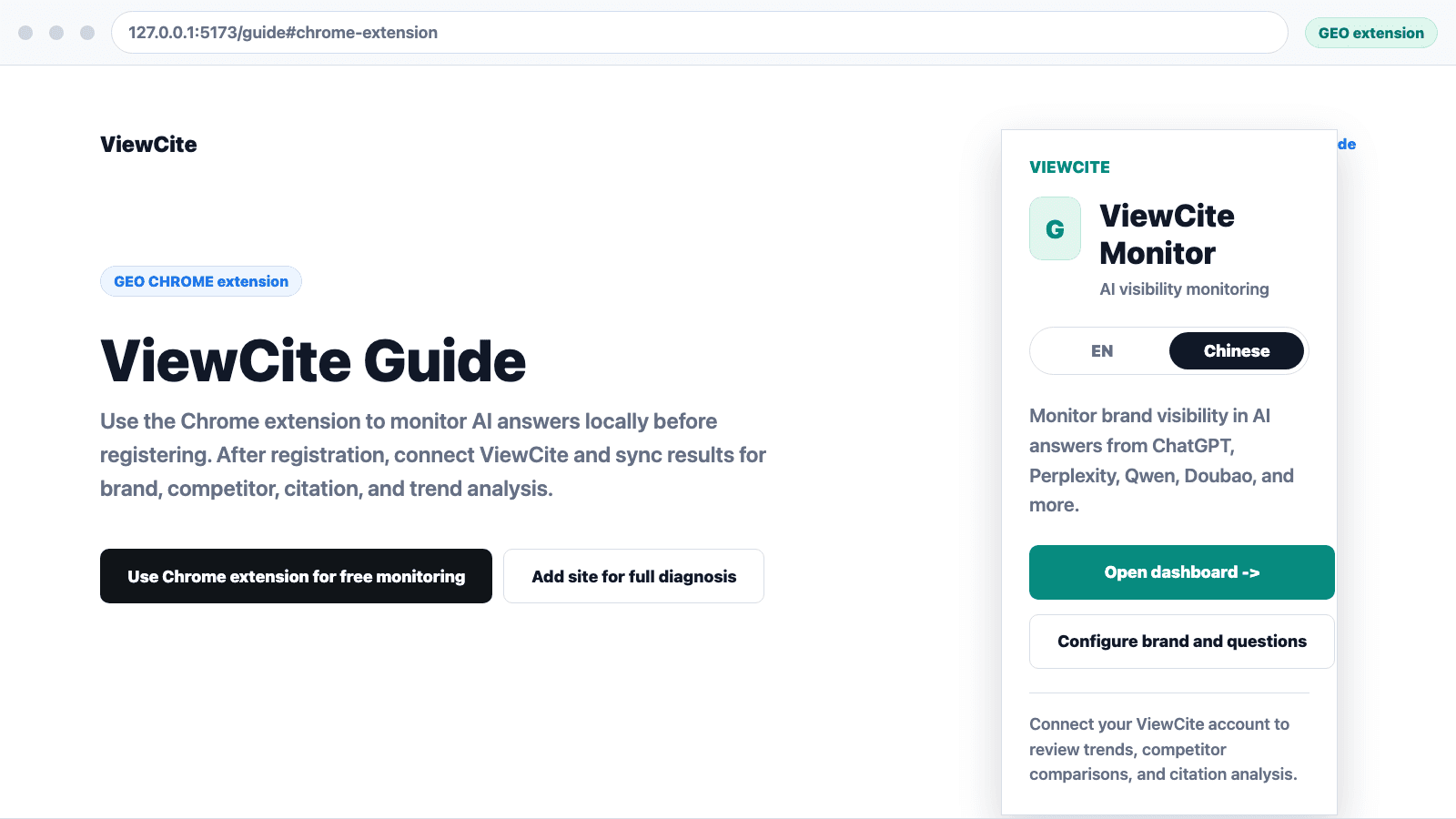
01 Install or open the ViewCite Chrome extension
Open the browser toolbar entry and enter the local monitor.
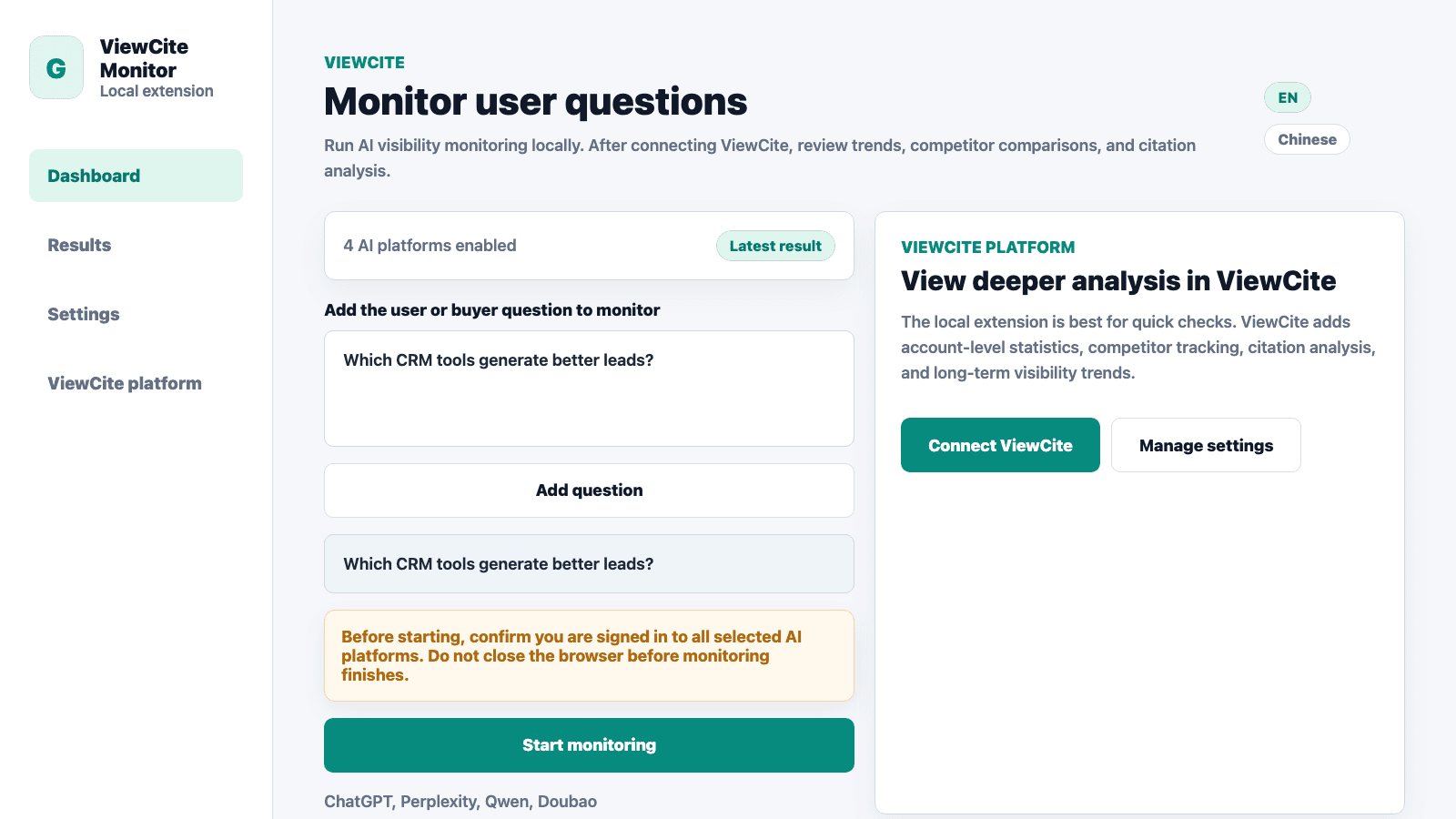
02 Open the monitor
Manage questions and start a local monitoring run.
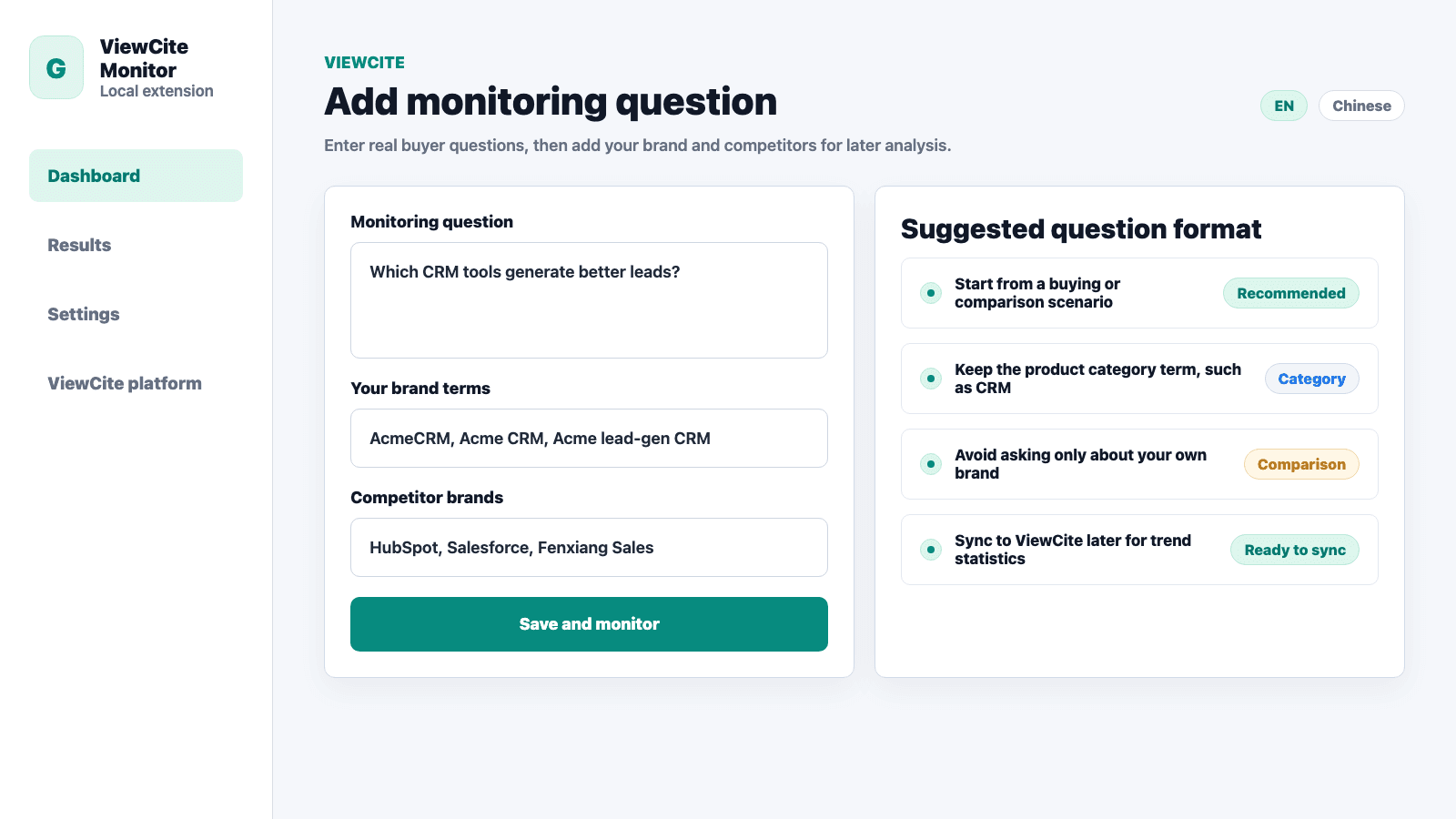
03 Add a monitoring question
Try a buyer question such as Which CRM tools are best for export sales teams?
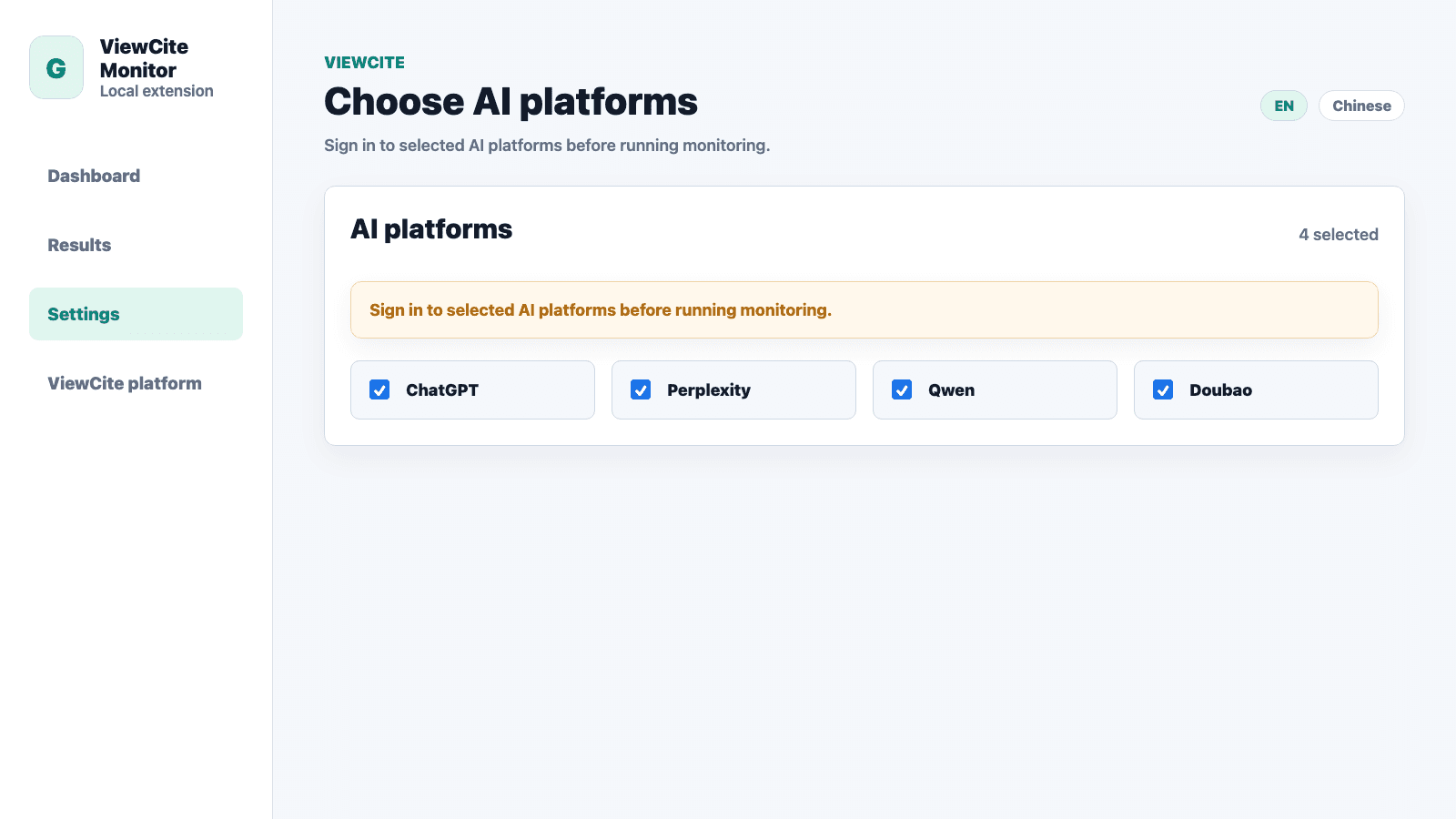
04 Choose AI platforms
Select ChatGPT, Perplexity, Qwen, Doubao, or the platforms you are ready to monitor.
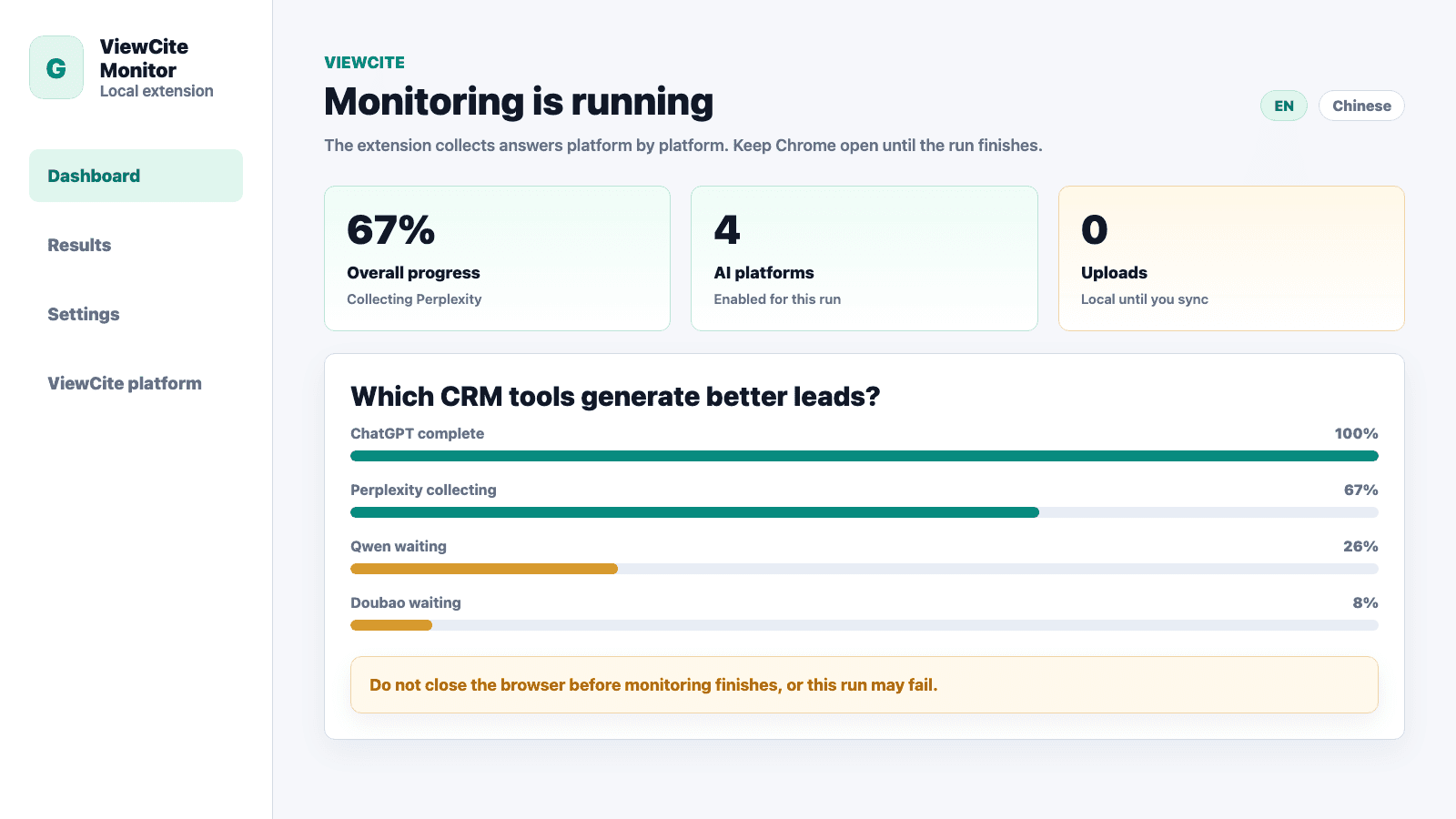
05 Run local monitoring
Keep Chrome open and wait for the selected platforms to finish.
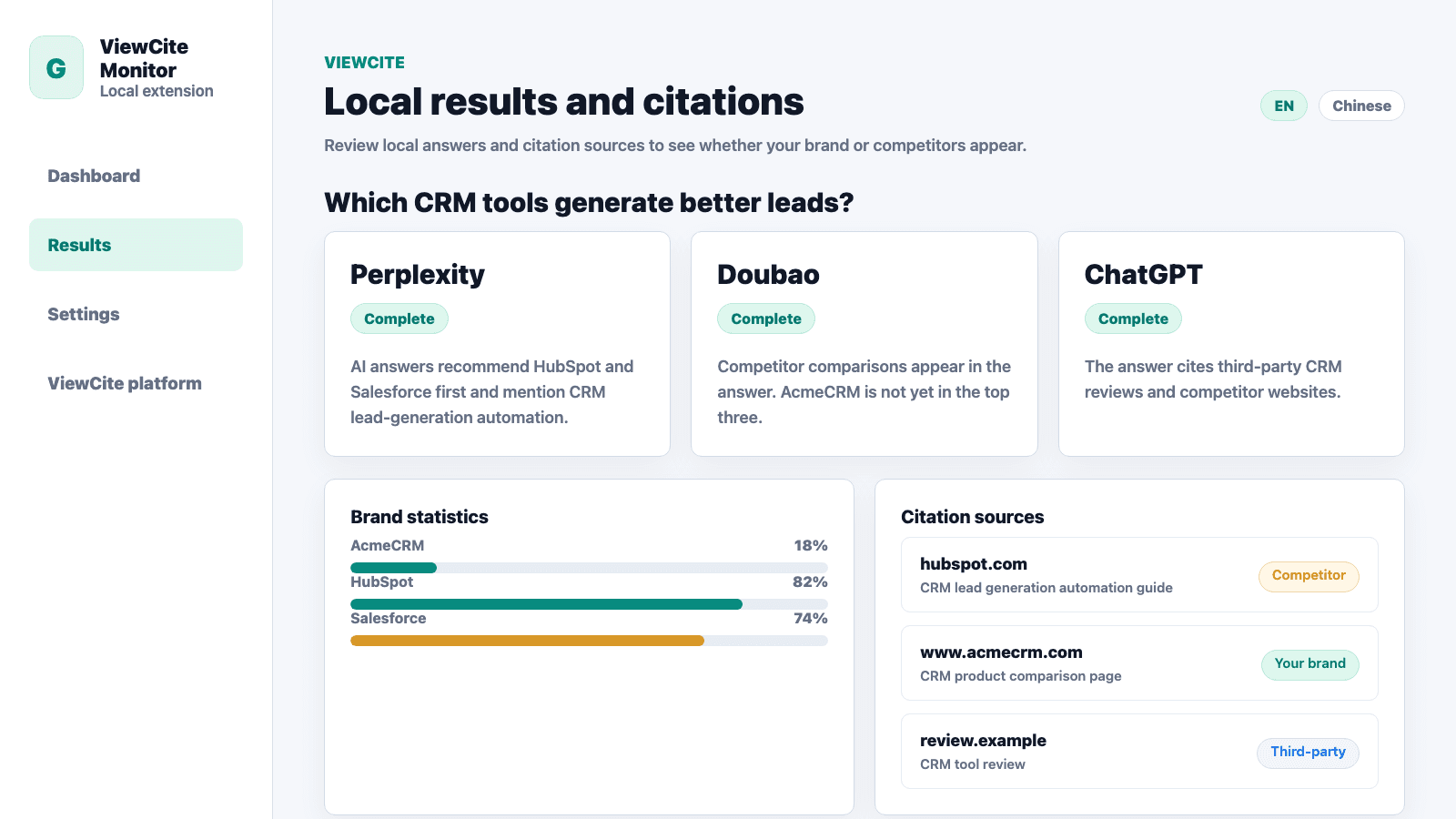
06 Review local results
Read captured answers and open citation sources to see whether your domain or competitors appear.
Sync for analysis
Sync local results to ViewCite for brand and competitor analysis.
After you register, connect the extension to ViewCite and upload selected local results into your account-level analysis.
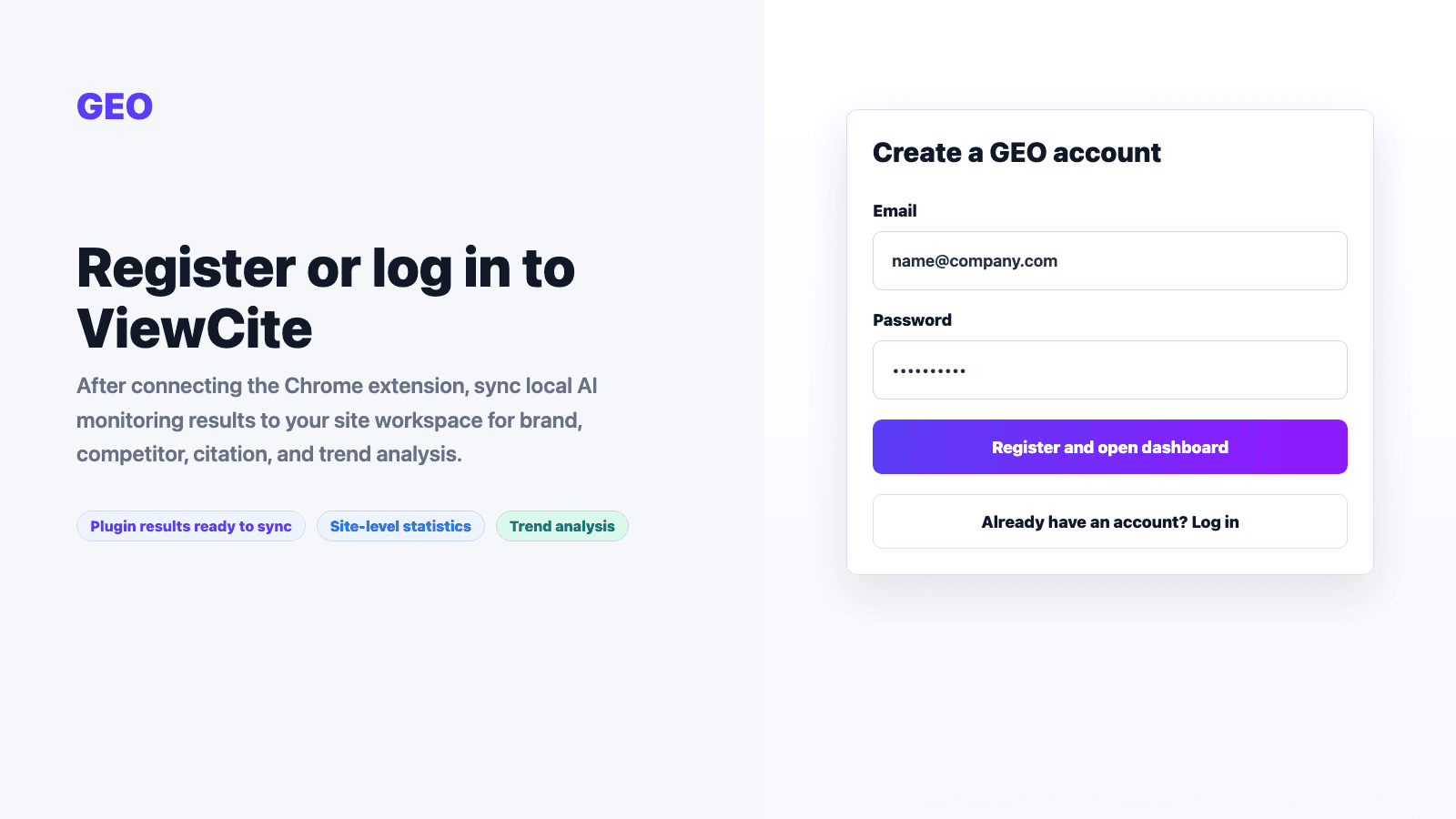
01 Register or log in to ViewCite
Create an account or sign in before connecting the extension.
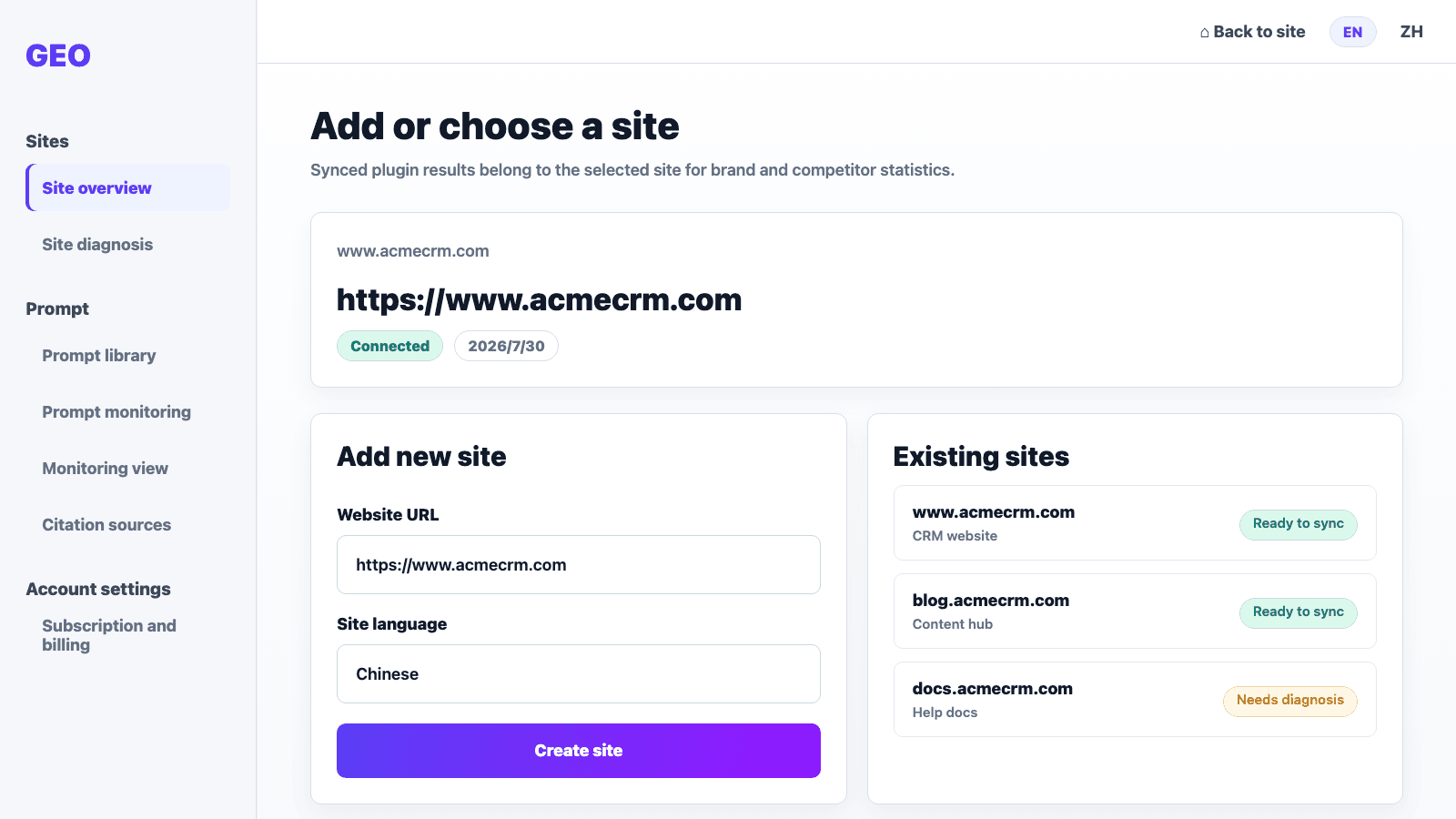
02 Add or choose a site
Create a ViewCite site or select an existing site for synced results.
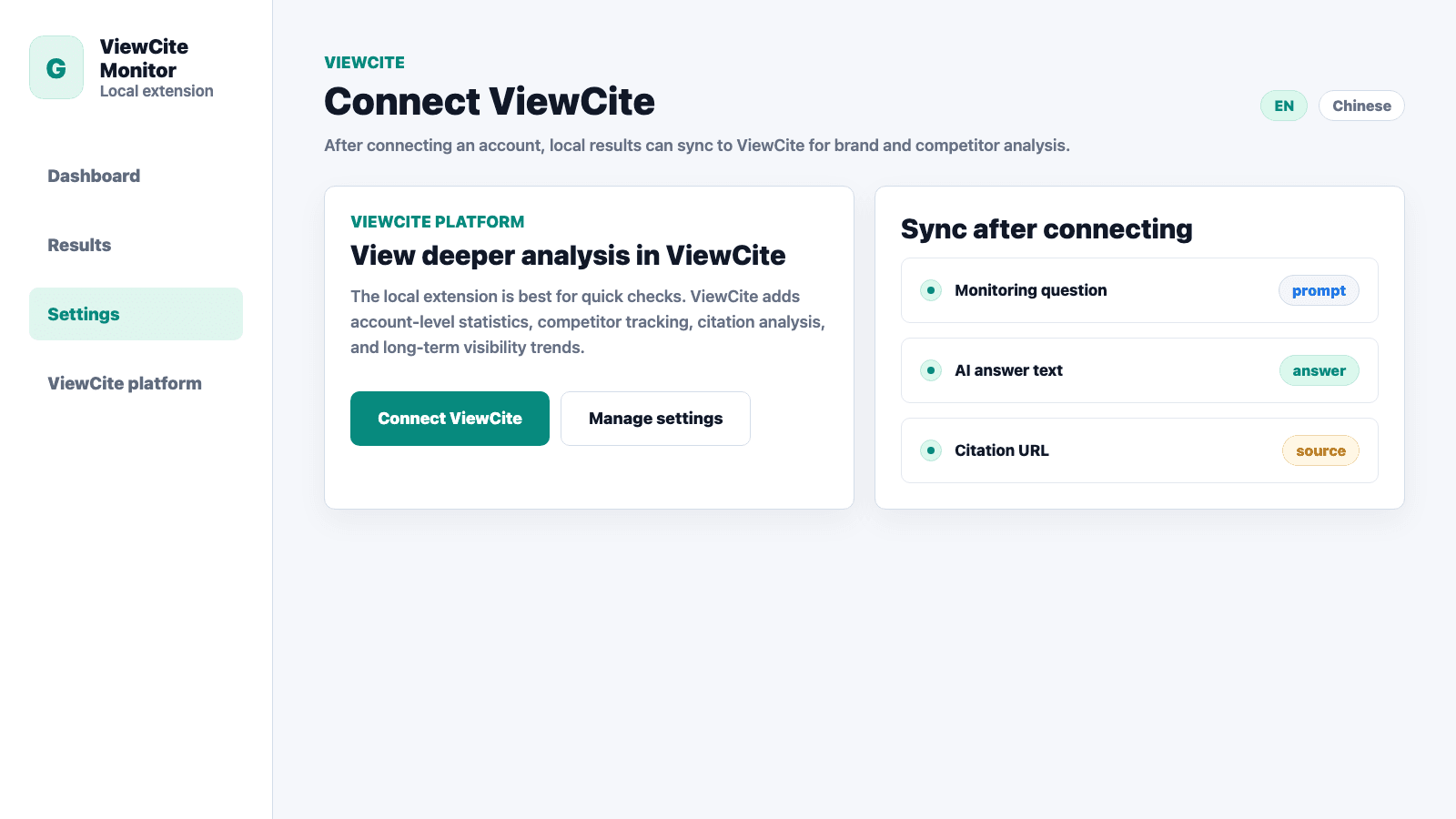
03 Connect ViewCite in extension settings
Open settings, click Connect ViewCite, and complete the connection flow.
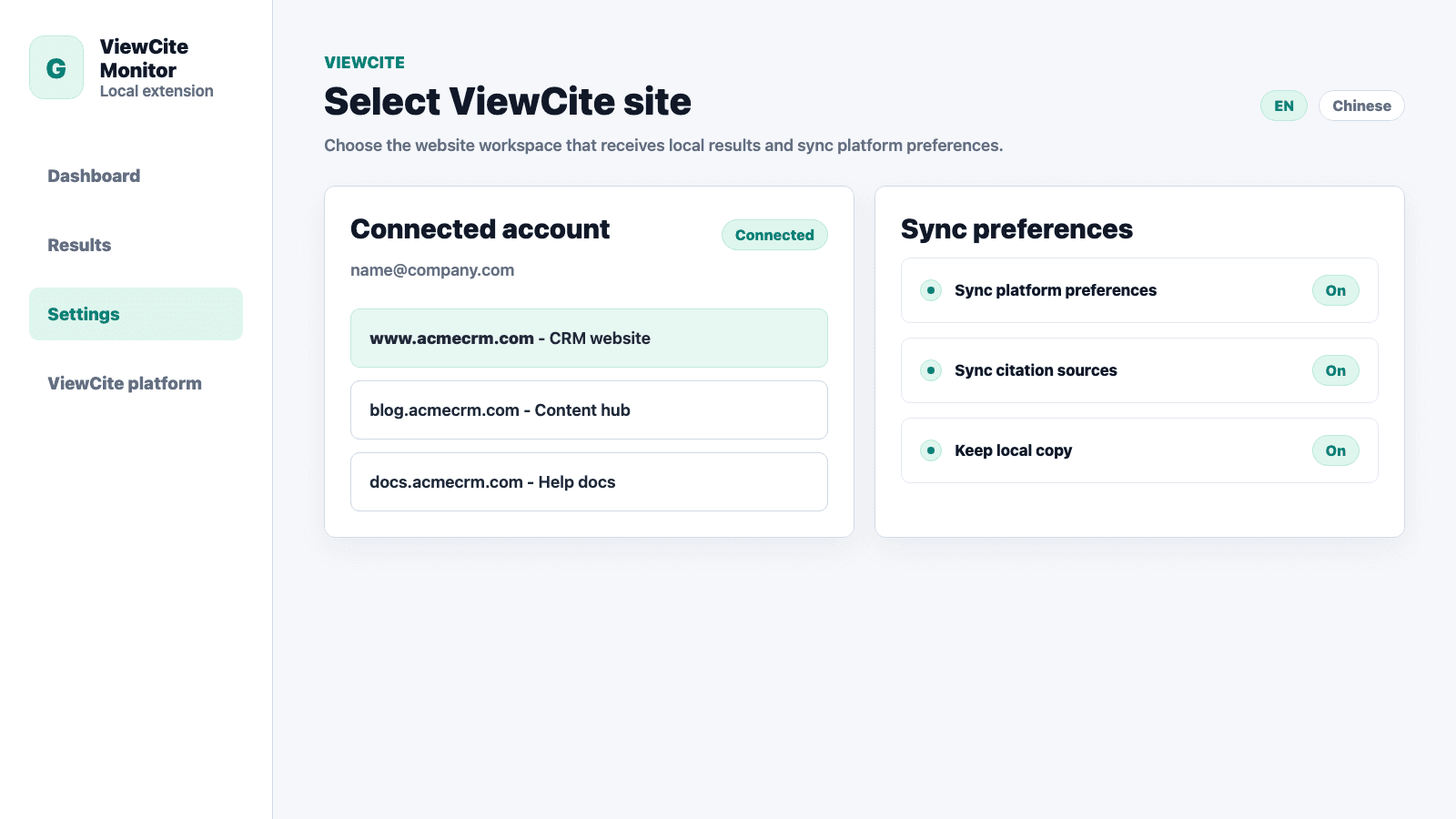
04 Select the ViewCite site
Choose which site should receive the monitoring results.
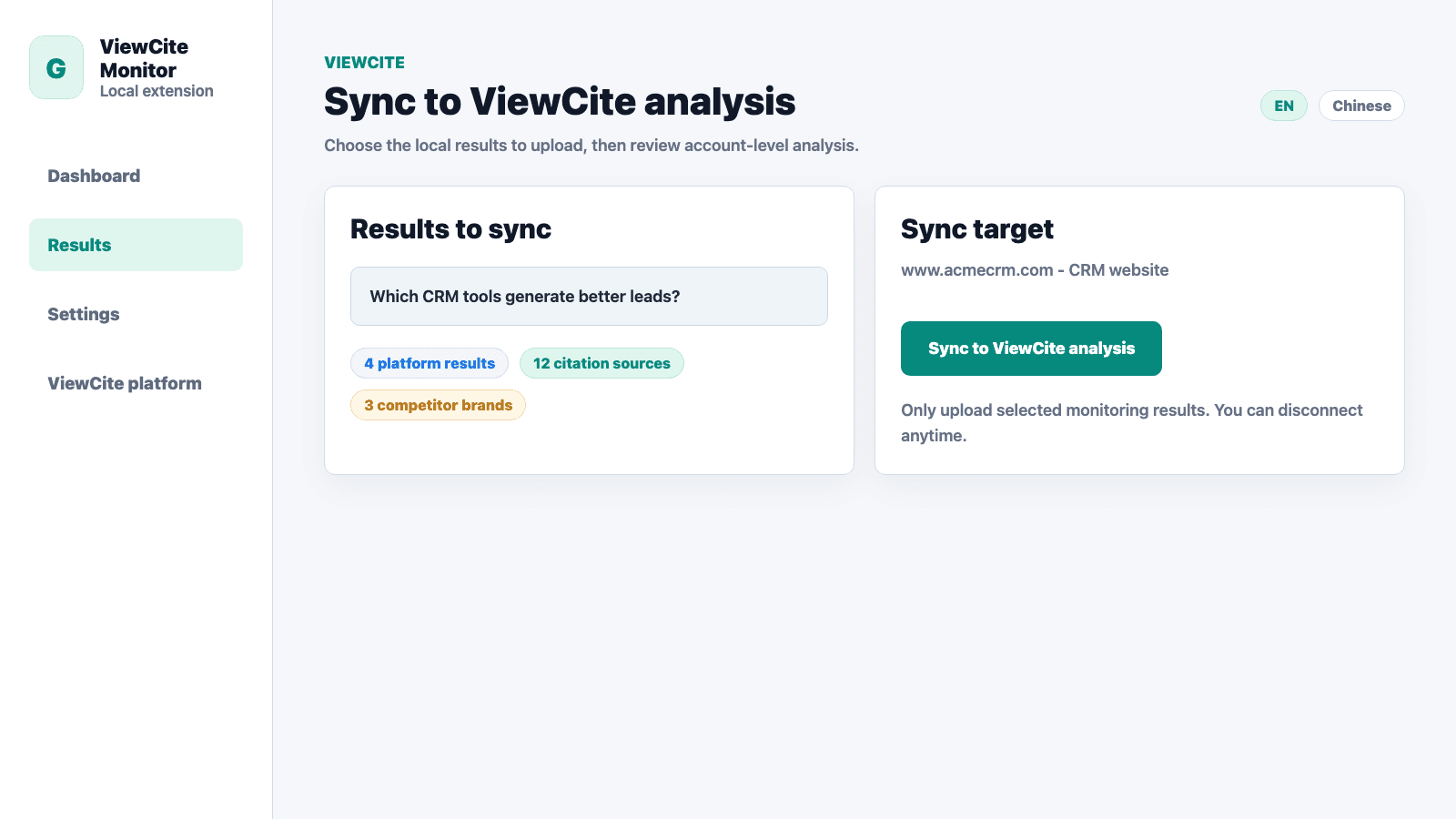
05 Sync to ViewCite analysis
Return to local results and click Sync to ViewCite analysis.
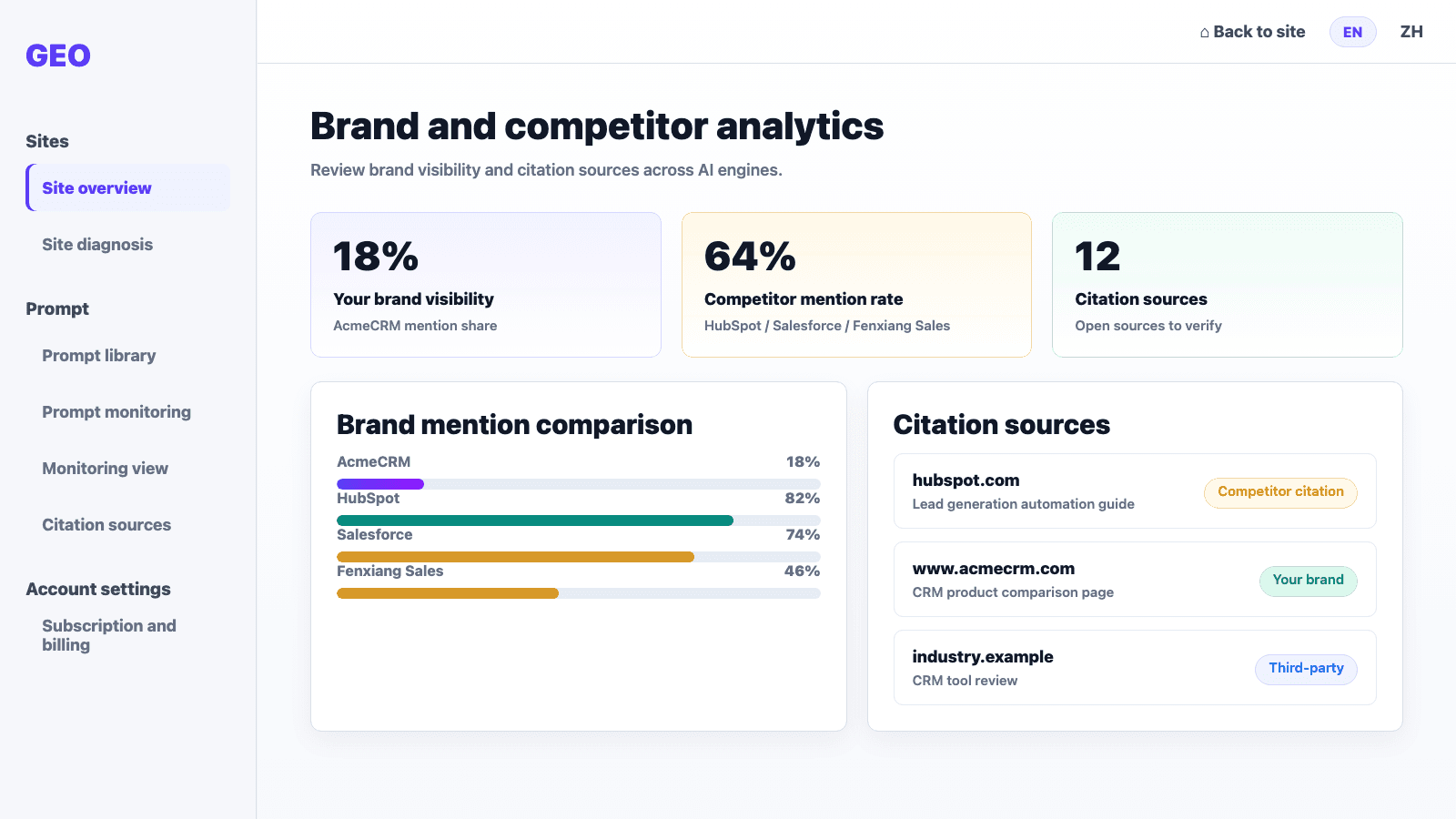
06 Review analysis in ViewCite
Compare brand visibility, competitor mentions, citation sources, and trends.
Registered workflow
Use the dashboard after registration.
Add a website, run GEO diagnostics, manage prompts, monitor answers, and review citations from one workspace.
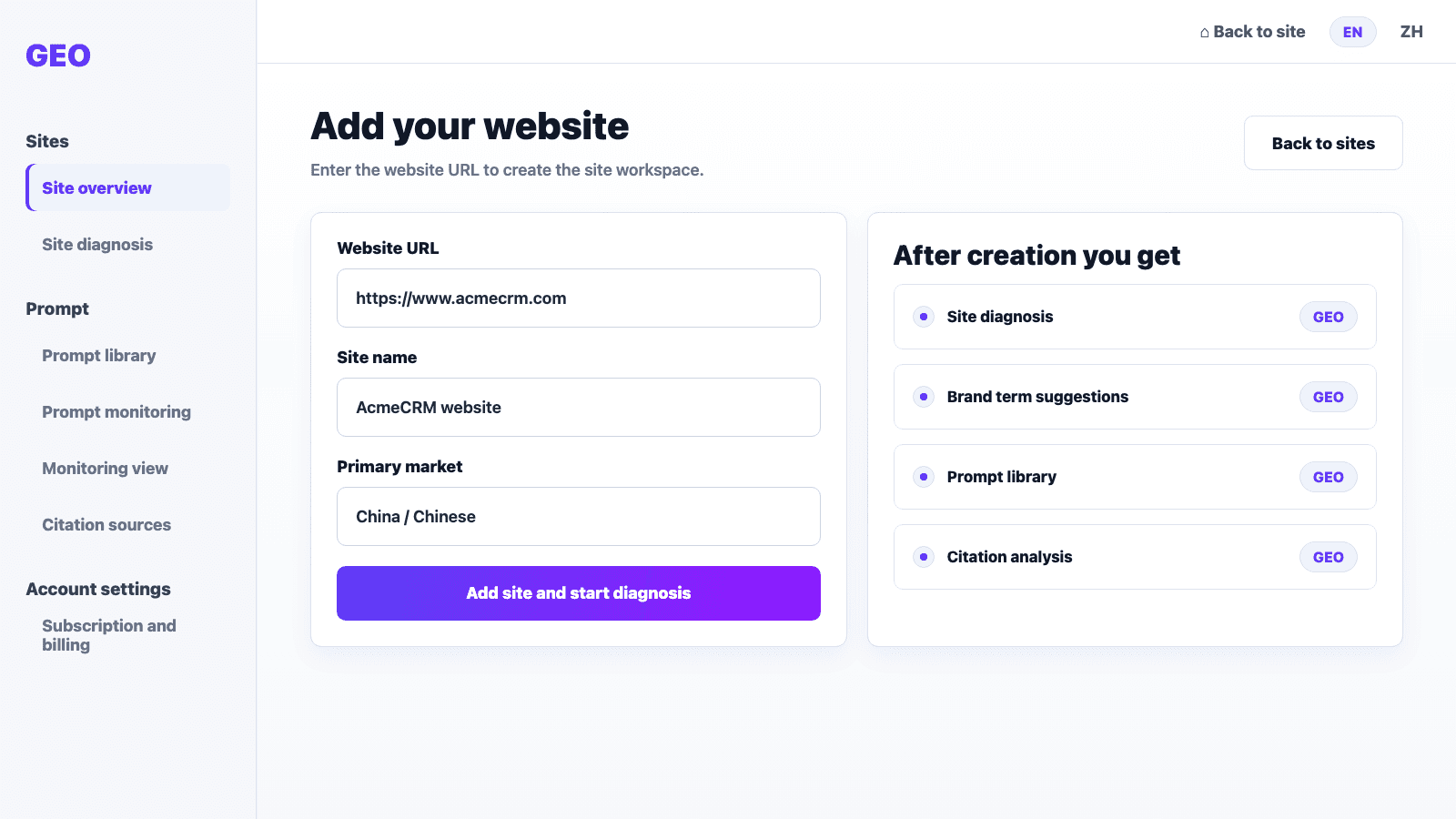
01 Add your website
Enter a website URL to create the site workspace.
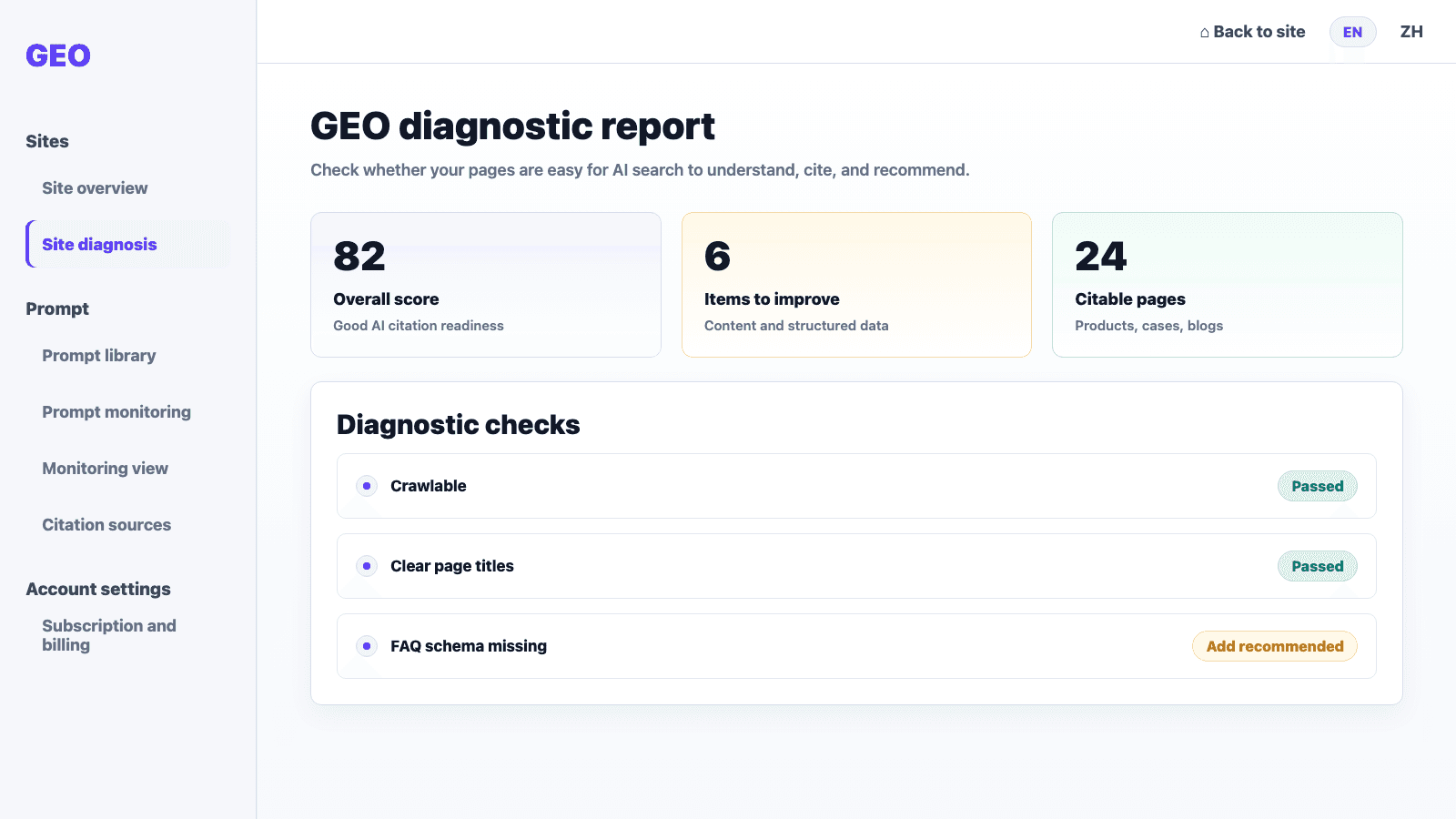
02 Generate a GEO diagnostic report
Inspect crawlability, content structure, metadata, Schema, and AI readiness.
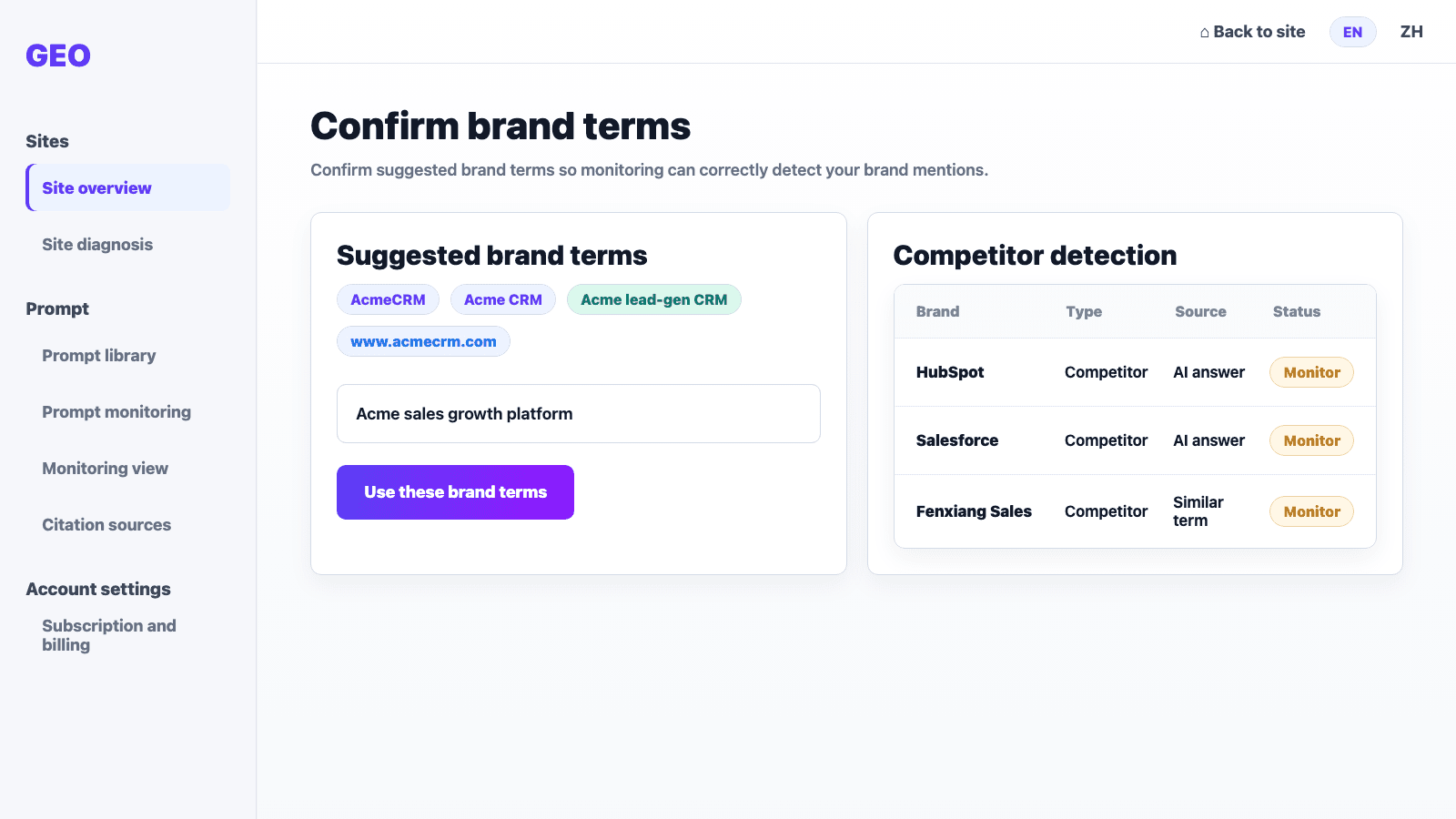
03 Confirm brand keywords
Review suggested brand keywords so monitoring identifies your mentions correctly.
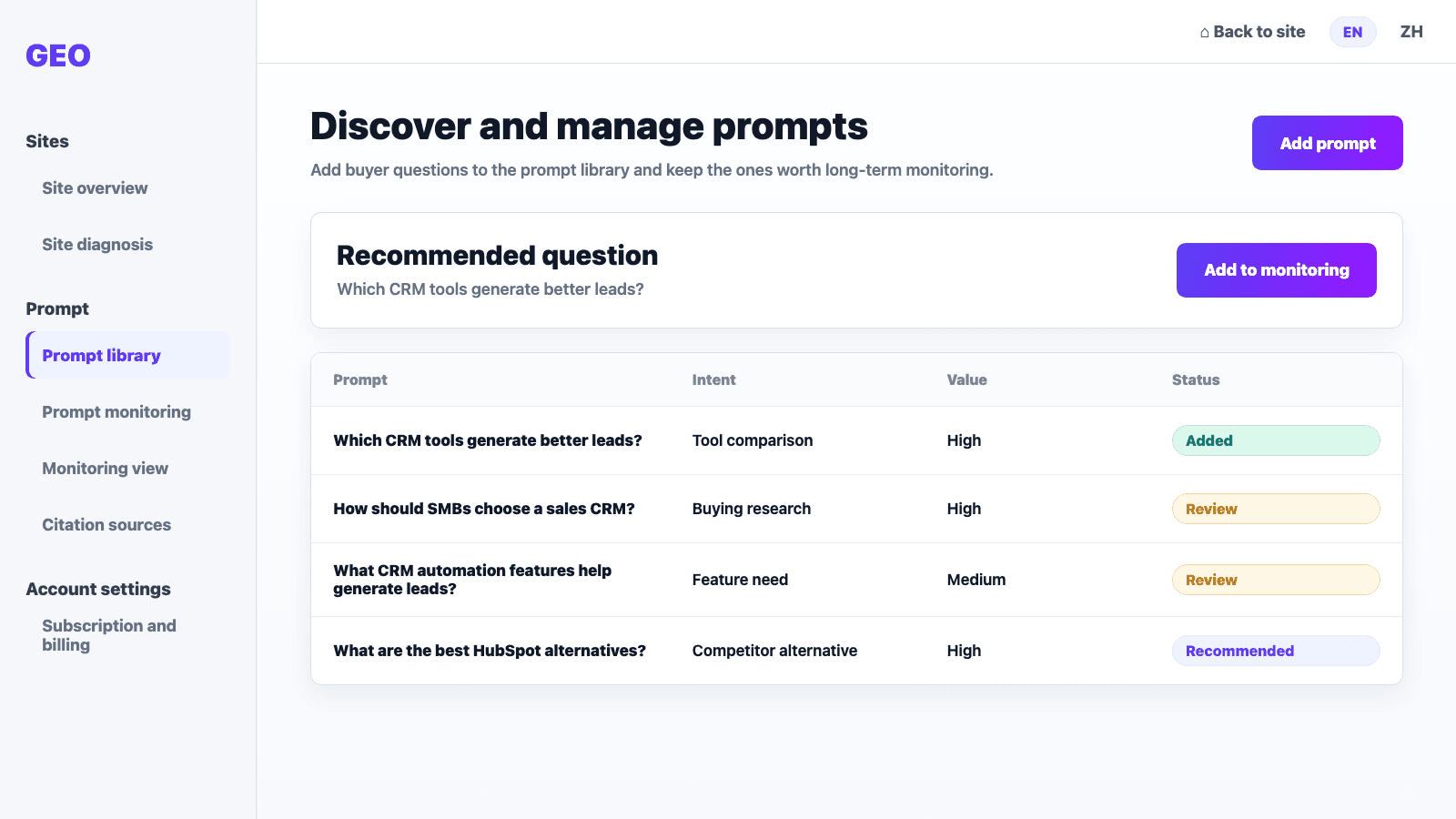
04 Mine and manage prompts
Add buyer questions to the prompt library and keep the prompts you want to monitor.
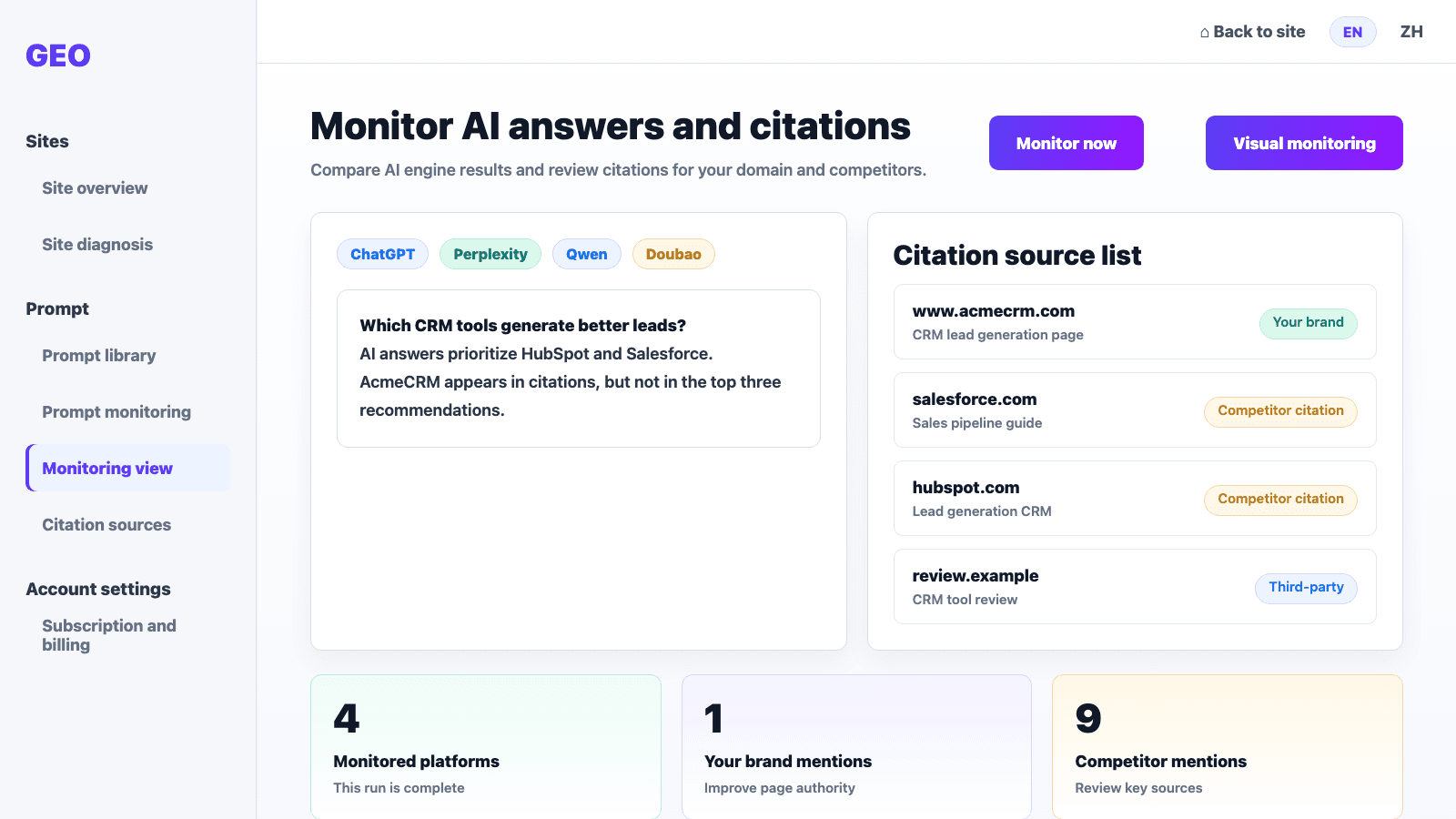
05 Monitor answers and citations
Compare engine results and citation sources for your domain and competitors.
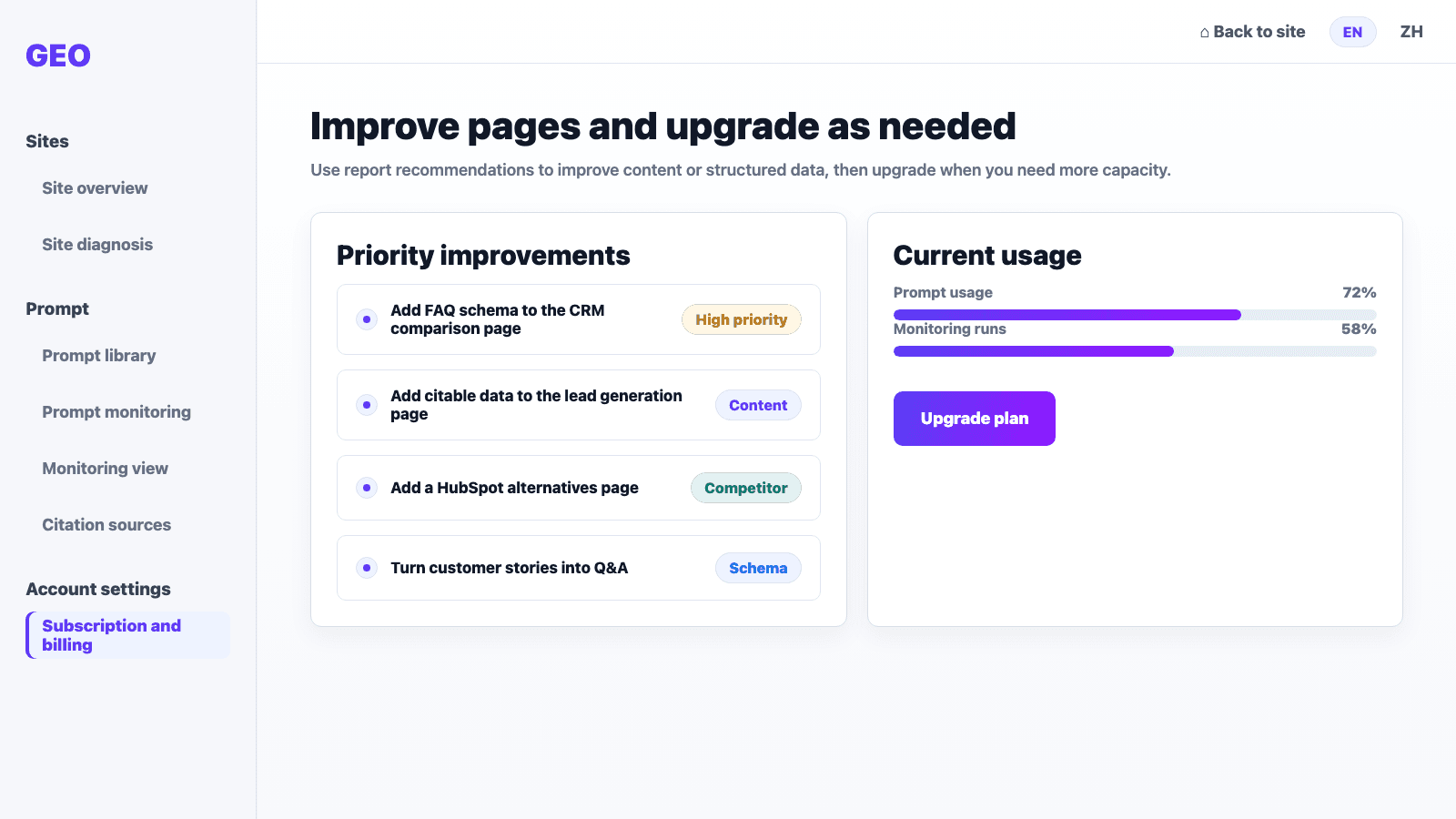
06 Improve pages and upgrade when needed
Turn report suggestions into content or structured-data work, then scale capacity when needed.